For firm admins and staff
Law firm guide
Your dashboard, each client's page, requests and reminders, required documents, TaxAppealPro imports, client logins, documents, e-signatures, and (for admins) users and settings.
Getting around
- 1
The tabs
Dashboard is your home page. Requests shows a count of requests waiting on you. Required docs is your firm-wide schedule of documents, Documents is every file, and Imports brings in TaxAppealPro data. Firm admins also see Users and Settings. Help is always last, at the far right.
The current page is underlined. On a phone, swipe the tabs sideways.

- 2
The bell and your account
The bell shows new activity: client replies, uploads awaiting review and new client questions. Click one to jump to it; Mark all as read clears the badge. Every staff login also gets these by email.
Click your initials for your account details and Sign out.
Your dashboard
Where every client stands, and what needs you today.
- 3
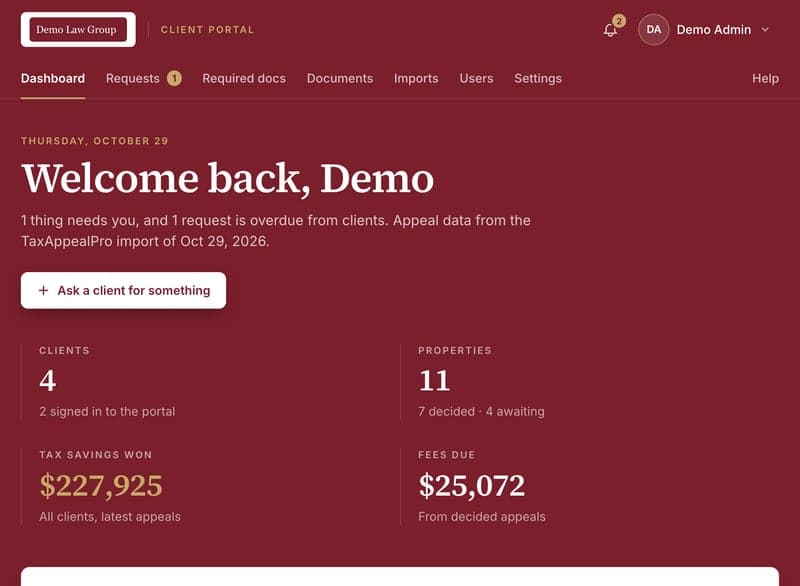
Totals and what's waiting on you
The figures at the top add up the whole firm: clients, properties (decided and still awaiting a decision), tax savings won and fees due. They come from your latest TaxAppealPro import and use the same math as the savings report.
Waiting on you lists client replies and questions, and files you haven't reviewed yet. Overdue from clients lists required documents past their due date, each with a Send reminder button. Recent client activity, at the bottom of the page, shows sign-ins, uploads and replies.
- 4
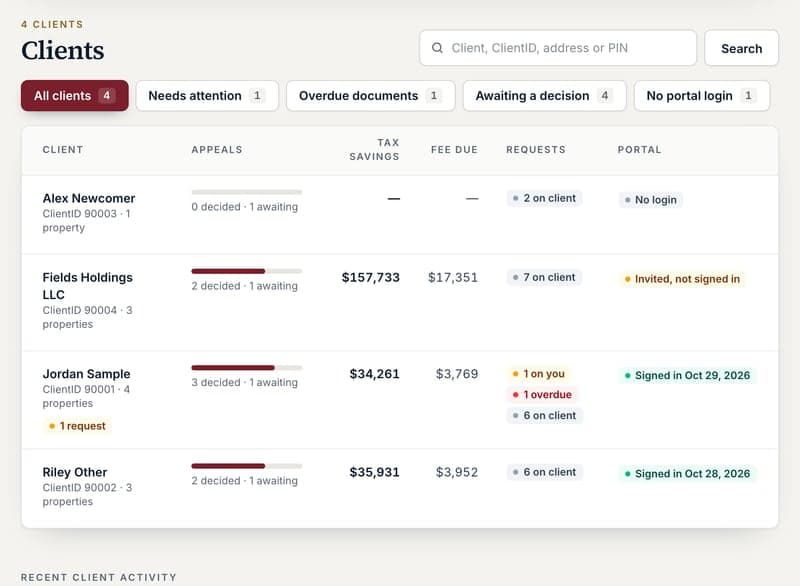
Every client at a glance
The Clients table shows each client's appeals, savings, fee due, open and overdue requests, and whether they use the portal. Filter to Needs attention, Overdue documents, Awaiting a decision or No portal login, or search by name, ClientID, address or PIN. Click a name to open the client.
A client's page
Everything about one client in one place.
- 5
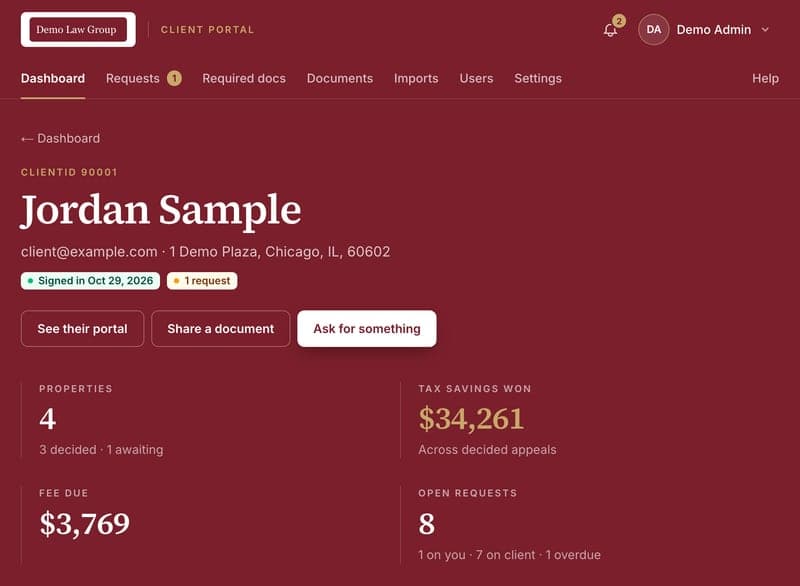
Standing and properties
The top shows the client's contact details, portal status, savings won, fee due and open requests. The Properties table lists every property with its appeal stage, starting and final assessed value, savings, fee and next step. Click an address for the full savings report. The row of links above the table jumps to the rest of the page: required documents, requests, documents, correspondence and portal logins.
Firm admins can click See their portal to view it exactly as the client does.
- 6
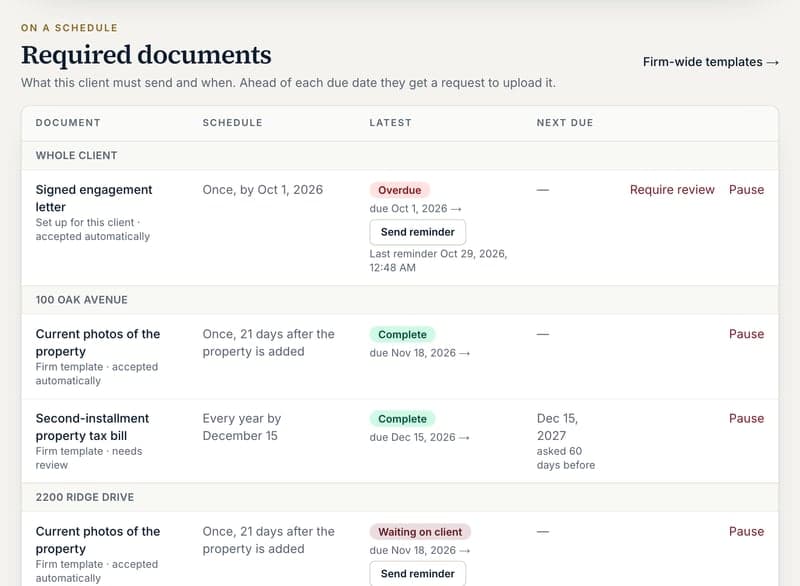
Required documents, requests and documents
Required documents lists what the client owes, grouped by property, with each due date's status and a Send reminder button where it's waiting on them. Below are the client's requests and documents.
- 7
Correspondence
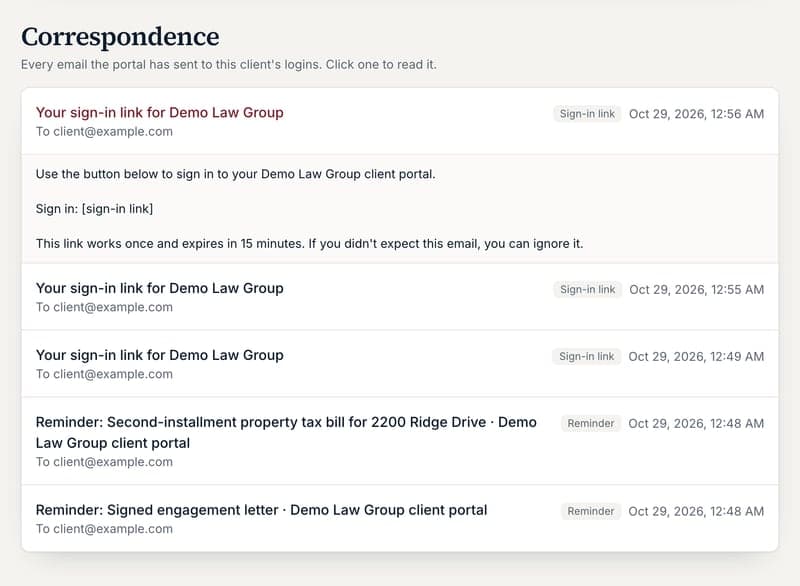
Every email the portal has sent to this client's logins: invites, sign-in links, requests, reminders, replies and review results. Click one to read exactly what was sent. Sign-in links are blanked out in the stored copy, and an email that couldn't be delivered is marked.
Requests and reminders
Use requests instead of email to ask clients for documents or information. Everything stays in one thread, and you accept what they send.
- 8
Ask a client for something
On the client's page click Ask for something, or use the form on Requests: optionally the property, what you need and by when. The client gets an email and sees it in their portal.
- 9
Review what they send
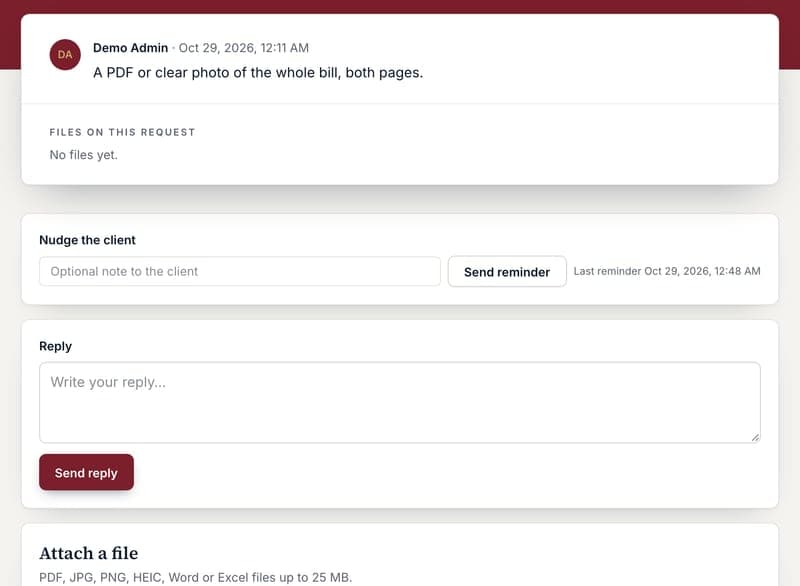
Files the client attaches appear in the request with Accept and Needs changes buttons and an optional note; the client is notified either way. When you have everything, click Mark complete. For a required document, accepting the file completes that due date by itself.
- 10
Send a document for signature
On a client's page, use Send for signature: pick one of your SignWell templates, or upload a PDF or Word file (a signature page is added at the end). Choose who signs from the client's email addresses, add a message, and send.
SignWell emails the client, and the request in their portal gets a Sign now button. When they sign, the signed copy with SignWell's audit page is filed in their documents and the request closes; you get a notification. If they decline or the link expires, you're told and the request stays open.
- 11
Send the engagement packet
For a new or renewing appeal, choose Engagement packet under Send for signature on the client's page, then the property and tax year. The portal fills in your fee agreement, the Cook County Assessor authorization form and the Board of Review authorization form from TaxAppealPro: owner, mailing address, PIN, township, fee and your firm's details. Click Preview the packet to check it first.
The client signs first and ticks the boxes that apply to them (owner, lessee, purchased since…). SignWell then emails your countersigning attorney. When both have signed, the packet is filed as a retention agreement and the request closes.
- 12
Send a reminder
While a request is waiting on the client, click Send reminder: on the request (with an optional note), in the client's Required documents, or under Overdue from clients on the Dashboard. The client gets an email with the due date and your note. The last reminder's time is shown, and it won't send twice within 10 minutes.
Required documents
Set up the documents clients must send on a schedule, such as a yearly tax bill, and the portal asks for them ahead of each due date.
- 13
Add firm-wide required documents
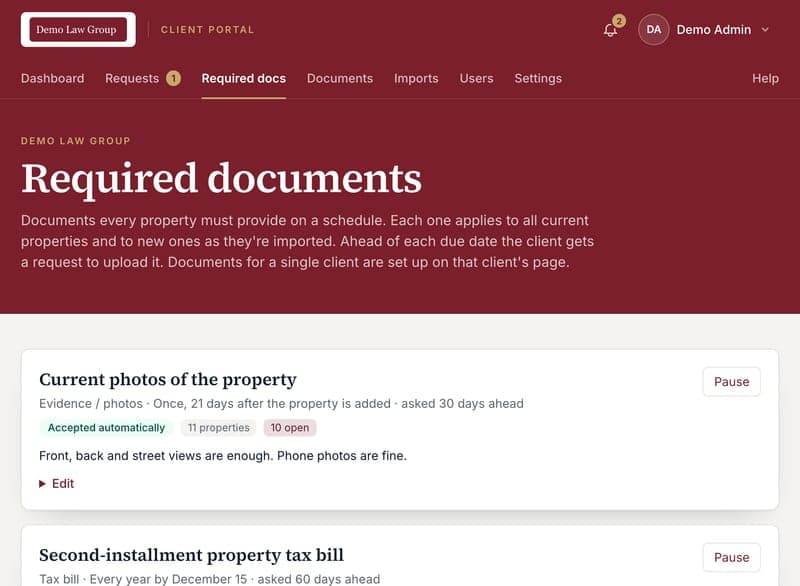
Open Required docs and use Add a required document: name it, pick the type, how often it's due (once, monthly, every 3 or 6 months, yearly) and a due date in the cycle, for example December 15 for a yearly bill. A one-off document is due a number of days after the property is added instead.
It applies to every property straight away, and to new properties as they arrive in an import. Edits apply to every property too; Pause stops new requests until you Resume.
- 14
Choose whether it needs review
Needs review on: the client's upload goes to Waiting on you, and accepting it completes that due date; Needs changes asks for another upload.
Needs review off: the upload is accepted automatically and that due date is marked complete. Use it for routine items like property photos.
- 15
Add one for a single client or property
On a client's page, under Required documents, use Add a required document for the whole client or one property, for example a quarterly rent roll for a commercial building. Pause it, or switch review on or off, from the same table.
- 16
How clients are asked
Ahead of each due date (30 days by default, set per document) the client gets a request and one email listing everything newly due. If a due date passes while it's still waiting on them, they get one automatic reminder and it shows under Overdue from clients. The schedule runs every morning, and straight away when you change a required document or apply an import.
Getting data in from TaxAppealPro
The portal shows whatever is in your latest TaxAppealPro export. Re-importing updates records in place, so you can run it as often as you like.
- 17
Export the results query from TaxAppealPro
Export the results query as an Excel (.xlsx) file: one row per property per tax year, with the standard column headings. Internal columns such as staff assignment or referring attorney are ignored and never stored in the portal.
- 18
Upload it and review the preview
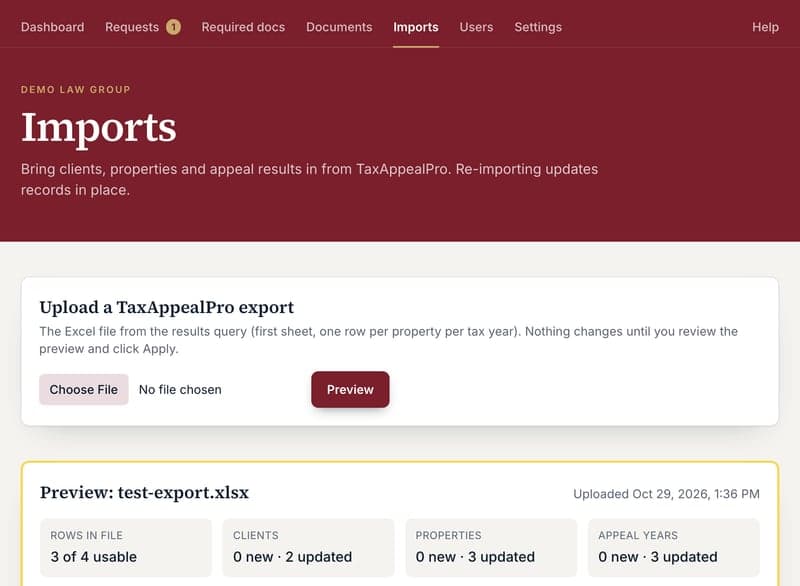
Open Imports, choose the file and click Preview. Nothing changes yet. The preview shows how many rows are usable and how many clients, properties and appeal years would be added or updated. Rows with problems are listed with their spreadsheet row number.
- 19
Apply or discard
Click Apply import to bring the data in, or Discard to throw the file away. Rows with problems are skipped. New properties pick up your required documents straight away. History records every import and who ran it.
Client logins
- 20
Invite a person to a client
On the client's page, under Portal logins, enter their email (the one from TaxAppealPro is pre-filled when there's no login yet), optionally a name, and click Invite. They get an email with a sign-in link.
A spouse, business partner or bookkeeper can be invited to the same client; each gets their own login. One person can also be invited to several clients, for example an owner with properties under two LLCs.
- 21
Send link and Remove
Send link emails a fresh sign-in link, handy when a client says the email never arrived. Remove takes away that login's access to the client; if it was their only client, the login is disabled and signed out immediately.
Documents
- 22
See everything clients upload
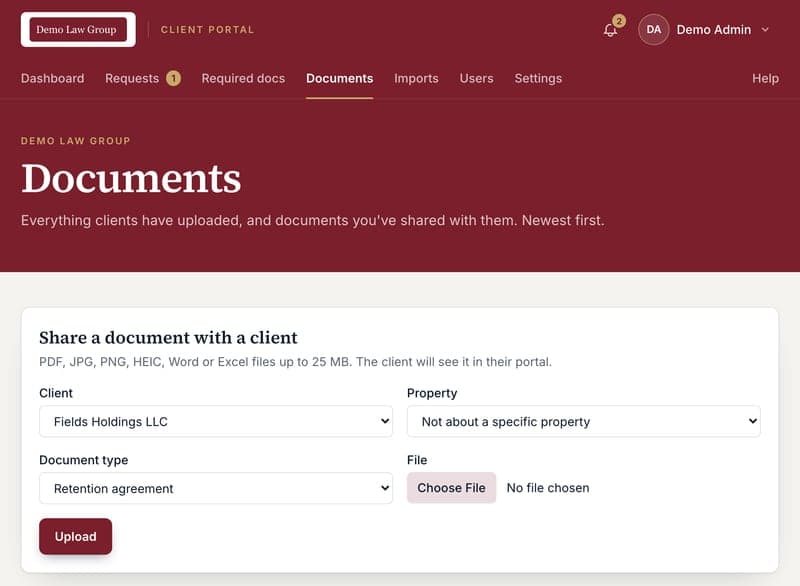
Documents lists every file across all clients, newest first, with the client, property and who uploaded it. Click the filename to download it.
- 23
Share or remove a document
Use the form at the top (or Share a document on the client's page) to send a client a file; they see it marked "from your law firm". Remove hides a document from everyone; the file itself is kept, so it can be restored if needed.
Users and viewing as a client
For firm admins.
- 24
The Users page
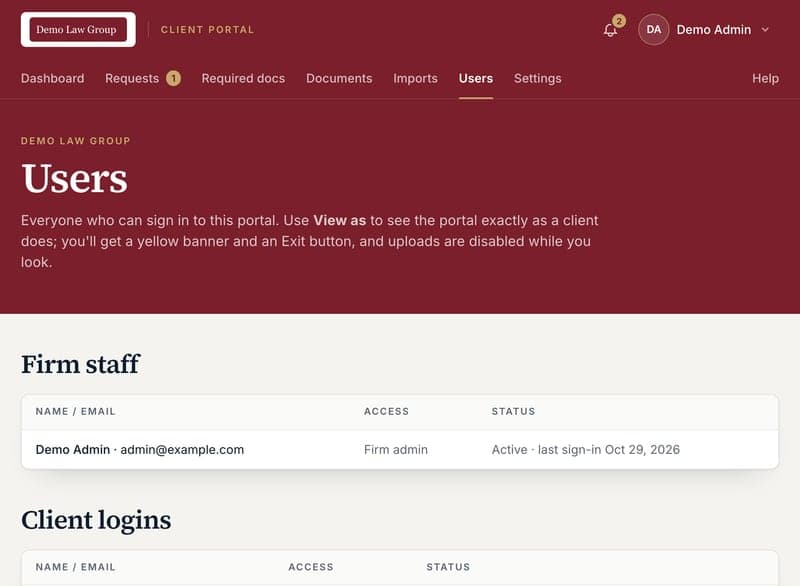
Users lists your firm's staff logins and every client login, with their status (invited, last sign-in, or disabled) and which clients each login can see.
- 25
View the portal as a client
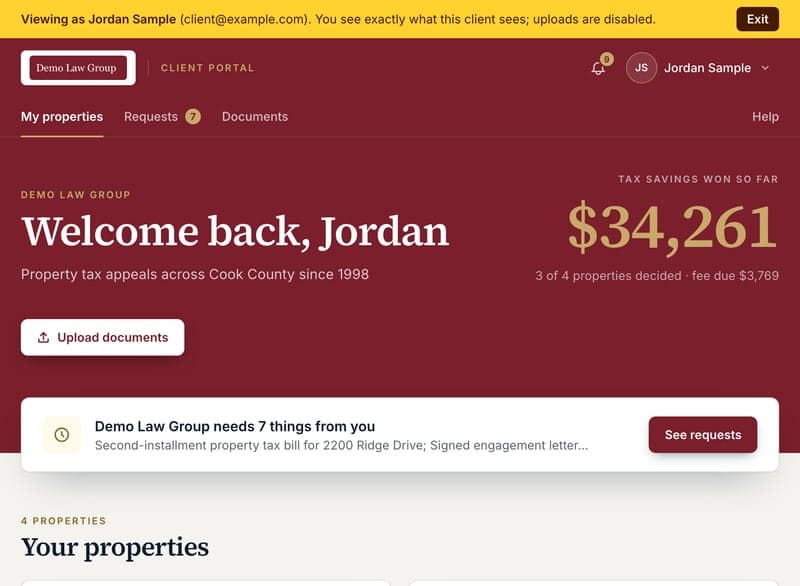
Click View as on the Users page, or See their portal on a client's page, to see the portal exactly as that person does. A yellow bar reminds you whose view you're in, and uploads are disabled so nothing can be done in the client's name.
Click Exit on the bar to come back. Every use is recorded in the activity log.
Your firm's settings
For firm admins: what clients see, and the e-signature account.
- 26
Logo, color and contact details
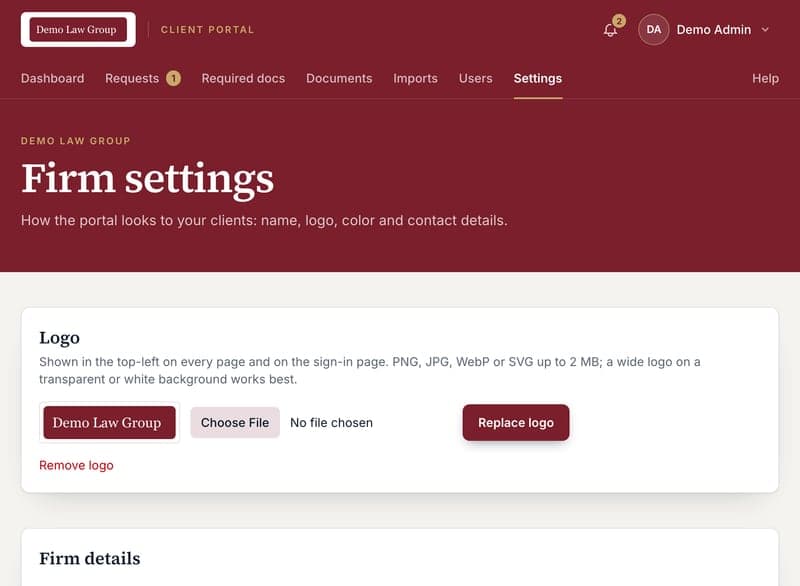
Open Settings. Upload your logo (PNG, JPG, WebP or SVG), pick an accent color for buttons and links, and add a tagline, website, phone and email. Save, and every page, email and the sign-in page picks it up.
Your firm also has its own portal address, shown on the Settings page, to link from your website. The sign-in page there carries your branding before anyone signs in.
- 27
Set up the engagement packet
Under Engagement packet, choose the attorney who countersigns, enter the firm's street address, your Assessor and Board of Review attorney codes and a default fee (used when TaxAppealPro has none), and paste your fee agreement wording. Placeholders like {{client}}, {{pin}} and {{fee}} fill in for each property. Preview with sample data to check the layout.
The Board of Review form changes each year. When the Board posts a new year's form, ask the portal administrator to add it; until then a packet for that year leaves the Board of Review form out.
- 28
Connect SignWell for e-signatures
Documents for signature go out from your firm's own SignWell account. In SignWell, open Settings → API and create an API key; paste it under E-signatures in the portal's Settings. Start in test mode to try it: test documents are free but not legally binding. Turn test mode off before sending real agreements.
Add the templates you send often, like your retention agreement: set up the template in SignWell with the signature fields placed, then paste its link here and choose how the signed copy is filed.
Common questions
- A client says they didn't get the invite.
- Ask them to check spam, confirm the address on the client's page, then click Send link. The client's Correspondence shows whether the email went out. Invites only go to addresses you've set up, so a typo means no email.
- Can I change what a client sees?
- Clients see the properties linked to the client records they have access to. Add or remove access under Portal logins on the client's page; the data itself comes from your TaxAppealPro export.
- What happens if I import the same file twice?
- Nothing is duplicated. Clients, properties and appeal years are matched on their TaxAppealPro IDs and updated in place.
- Will a client get flooded with emails when I add a required document?
- No. Each run sends a client one email listing everything newly due, and an overdue document gets one automatic reminder; after that, reminders are up to you.
- What does SignWell cost?
- SignWell bills your firm's own account. Its API includes 25 documents a month free, then charges per document; test-mode documents are free. Check SignWell's pricing page for current rates.
- Who can use View as?
- Firm admins only. Every use is written to the activity log with the admin's name and the client login viewed.
Still stuck? Contact your law firm; they can re-send links, update your email, and adjust what you can see.