For property owners
Client guide
How to sign in, find your way around, see your properties and appeal results, answer your law firm's requests, and share documents.
Signing in
There are no passwords. Each time you sign in, we email you a link.
- 1
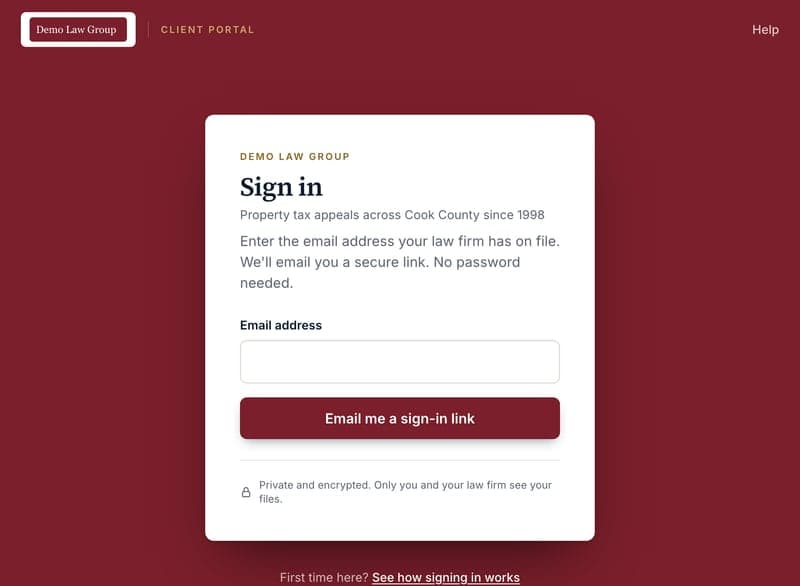
Open the portal and enter your email
Go to the portal address your law firm gave you and enter the email address they have on file for you.
If you're not sure which address that is, ask your law firm; the portal only sends links to addresses they've set up.
- 2
Check your inbox and click the link
You'll see a "Check your email" message. The email arrives within a minute; if it doesn't, look in your spam or junk folder.
The link works once and expires after 15 minutes. Clicking it signs you in, and you stay signed in on that device for 8 hours.

Getting around
- 3
The tabs under your law firm's name
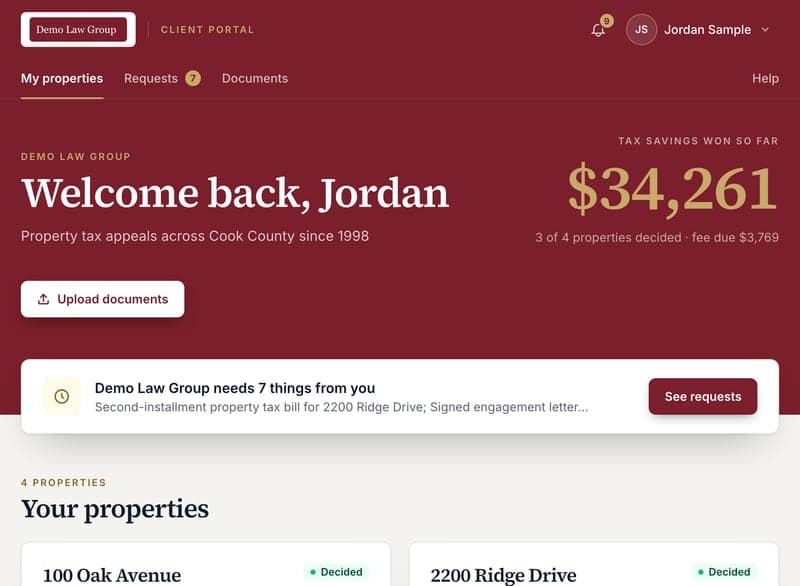
My properties is your home page. Requests is where your law firm asks you for things; the number next to it is how many are waiting on you. Documents is everything you've shared with each other. Help, at the far right, brings you back to this guide.
On a phone, swipe the row of tabs sideways to see them all.

- 4
The bell and your account
The bell shows how many things are new: a request, a reply, a file your firm shared, or a decision on a file you sent. Click it for the list; each item takes you straight to it. The same notices are emailed to you.
Click your initials for your account details and Sign out.
Your properties
- 5
Your portfolio
Your tax savings so far are at the top. Below are the properties your law firm is appealing for you: each card shows how far its appeal has got, what you saved once it's decided, or what happens next. If your firm is waiting on you for anything, a box above your properties points to it.
Click a property to open it.
- 6
What's required for the property
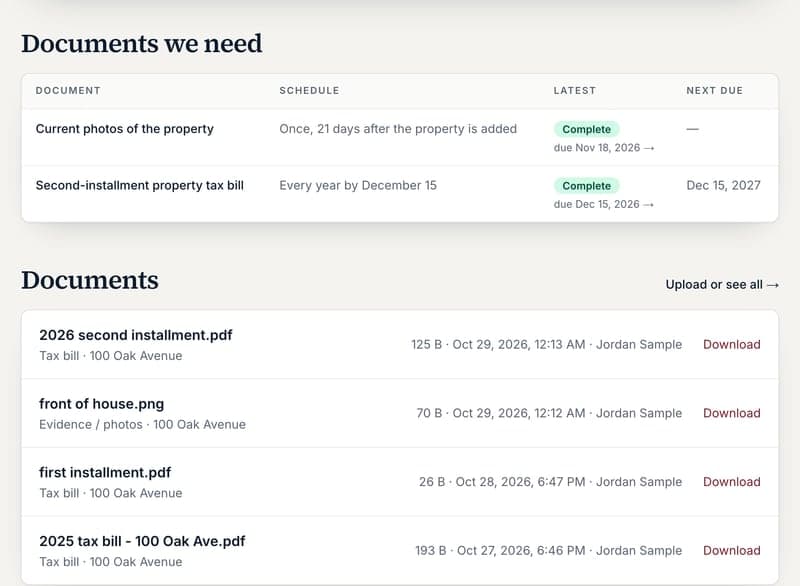
Below your results, a property page lists the documents your law firm needs for it, such as a yearly tax bill, with how often each is due and where it stands: Please upload, Submitted, Needs changes, Overdue or Complete. Click a status to open the request and upload.
- 7
Reading your results
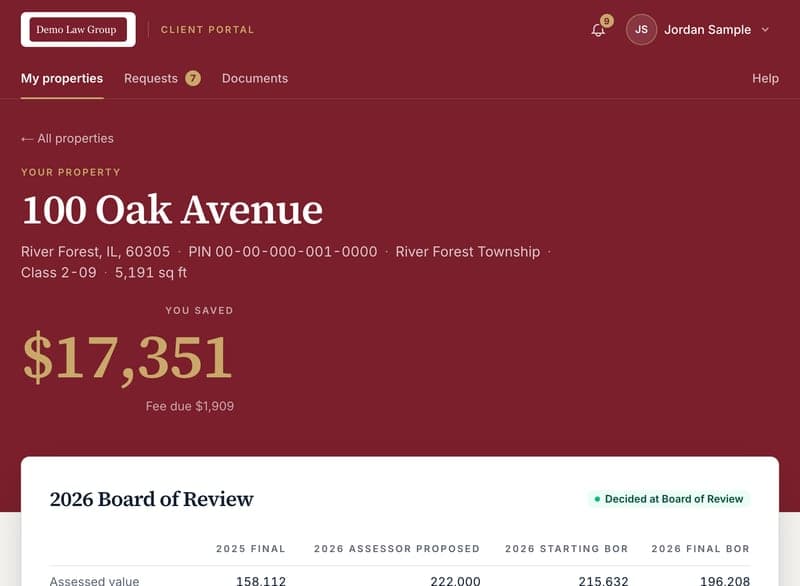
A property page opens with what you saved and the fee due. Under that it shows the assessment at each stage of the appeal: last year's final value, what the Assessor proposed, and the result at each board. Below the table are the assessment reduction, your tax savings for one year and for the full savings period, and the fee due.
If a stage hasn't been decided yet, the page says so. Results appear as soon as your law firm records them.
Requests
When your law firm needs something from you, it arrives as a request. You can ask them questions the same way.
- 8
Answer a request
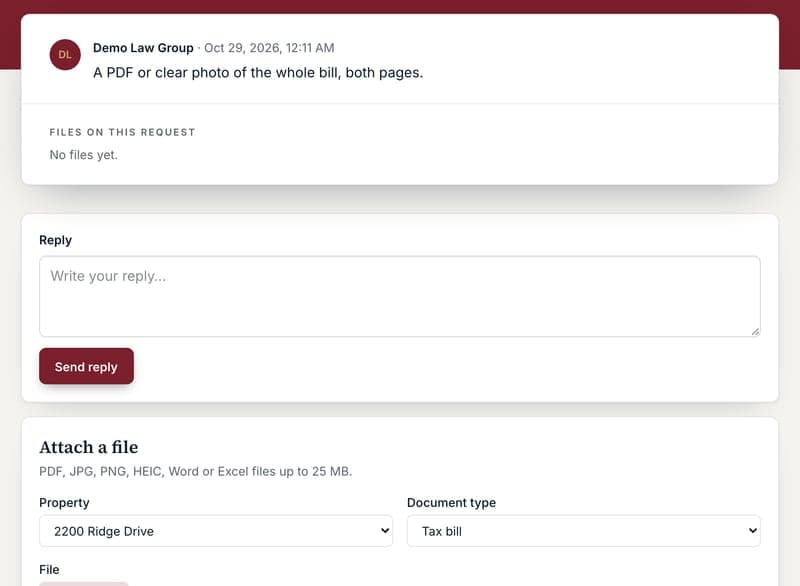
Open Requests. Each request says what's needed and by when; the ones waiting on you are marked. Open one, attach the file with Attach a file (the document type is already chosen for you), or write a reply.
Some documents are accepted as soon as you upload them and the request is marked complete. Others are checked by your law firm first: you'll be told when it's accepted, or asked for a corrected version.
- 9
Documents due on a schedule
Some documents are needed regularly, for example a tax bill every year. Your law firm sets these up once and the portal sends you a request ahead of each due date, in one email listing everything that's due. If a due date passes, you'll get a reminder; your law firm can also send one.
- 10
Sign a document
When your law firm needs your signature, for example on a retention agreement, you get a request called "Please sign: …". Open it and click Sign now to read and sign the document online, or use the link in the email from SignWell, the signing service your firm uses.
When you've signed you come straight back to the portal. A copy of the signed document is saved in your documents and the request is marked complete.
- 11
Ask your law firm something
On the Requests page, use Ask your law firm: a subject, the details, and optionally which property it's about. Your firm is notified and replies in the same thread.
Documents
Use the portal instead of email for anything sensitive. Only your law firm can see what you upload.
- 12
Upload a document
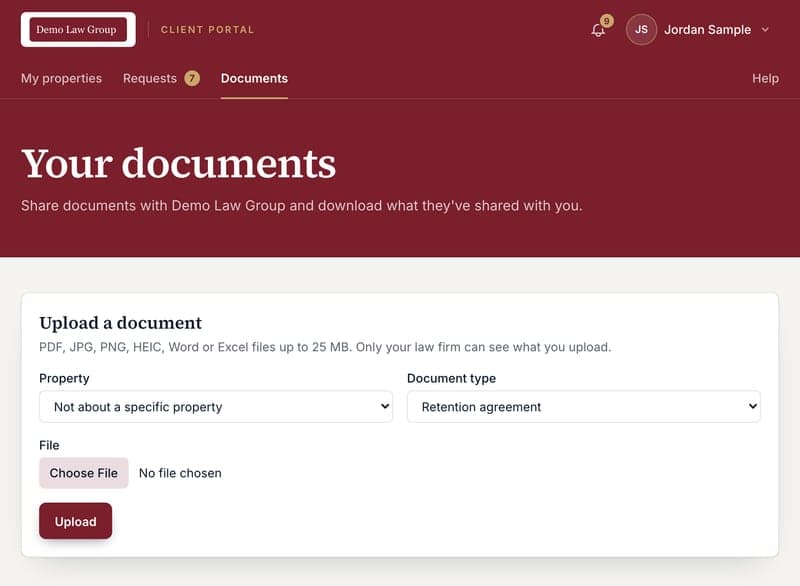
Click Upload Documents on your portfolio, or open Documents. Choose the property it relates to, the document type and the file, then click Upload.
Accepted: PDF, JPG, PNG, HEIC, Word and Excel files up to 25 MB.
- 13
Download what your firm shares
Documents your law firm sends you appear in the same list, marked "from your law firm". Click Download to save a copy. Documents for a property are also listed on that property's page.
Common questions
- Why did I get a request I didn't expect?
- Your law firm asks for some documents on a schedule, such as a yearly tax bill. The request arrives ahead of the due date; upload the document on the request and you're done. The property's page lists what's required and when.
- The sign-in email never arrived.
- Check spam or junk first. Then make sure you used the exact email address your law firm has on file; the portal won't tell you if an address isn't recognised. Your firm can re-send a link or update your address.
- The link says it's invalid or expired.
- Links work once and expire after 15 minutes. Go back to the sign-in page and request a new one.
- How do I sign out?
- Click your initials at the top right, then Sign out. You're also signed out automatically after 8 hours.
- A property is missing.
- Your law firm controls which properties are linked to your login. Contact them and they can add it.
- Who can see my documents?
- Only you and your law firm's staff. Other clients of the firm never see them, and files are never shared at a public link.
Still stuck? Contact your law firm; they can re-send links, update your email, and adjust what you can see.